

If you've ever found yourself rebuilding the same page layout over and over in WordPress, you'll know how much of a time-sink it can be. Thankfully, learning how to duplicate a page is straightforward. A plugin like Yoast Duplicate Post, for instance, adds a simple 'Clone' link right next to your pages, letting you copy an entire design and its content into a new draft with a single click. No more repetitive setup.
Why Duplicating Pages Is a Core Agency Workflow
For a busy digital agency, duplicating a WordPress page isn't just a handy shortcut—it's a fundamental part of scaling efficiently. When you get this process right, it transforms a tedious, manual task into a massive productivity boost. It's one of the go-to tactics that smart white label WordPress partners rely on to get projects out the door faster and keep them profitable.
Speed and Consistency Across Projects
Top-tier agencies don't build every page from scratch. Instead, they use duplication to lock in perfect design consistency across a client’s entire website. By setting up a master page or a handful of core templates, a WordPress developer in Australia can guarantee every new page aligns perfectly with the established branding and layout guidelines.
This workflow is an absolute game-changer for:
- Rolling out new landing pages for marketing campaigns at a moment's notice.
- Building out localised service pages for different suburbs, cities, or regions without reinventing the wheel each time.
- Standardising product or portfolio layouts on e-commerce and creative agency sites.
Adopting this strategy frees up your team from mind-numbing layout work, letting them focus on what really matters: high-value custom WordPress development in Australia and client strategy.
By systemising page creation, an agency transforms its workflow from manual and error-prone to automated and reliable. This builds a scalable foundation that supports both client satisfaction and profitability.
Tangible Time Savings for Australian Agencies
Here in the Australian WordPress community, duplicating pages is just standard practice for optimising workflows. Tools like Duplicate Page or Yoast Duplicate Post can genuinely slash page creation time by 50–70% on projects with complex, reusable layouts.
Think about it this way: for a WordPress agency in Australia building a 40-page site for an Australian SME, cloning a core set of 5–6 master pages could cut the layout build time from around 40 hours down to less than 15. That’s a huge win.
This efficiency doesn’t just speed up project delivery; it directly protects your profit margins. It's even more powerful when you pair it with ongoing WordPress website support in Australia. Ultimately, the ability to clone and adapt is a clear competitive advantage, which is just one of the 7 reasons WordPress is the best platform for your business website.
The Plugin Method: Your Fastest One-Click Solution
When you need to copy a WordPress page quickly and without any fuss, a plugin is almost always the best way to go. For anyone running an agency, time is money, and spending it manually copying and pasting content is a waste. A good duplication plugin automates the entire process, making sure every last detail—from custom fields to specific page template settings—is perfectly replicated in just a few seconds.
One of the most reliable and popular tools for the job is the Yoast Duplicate Post plugin. It’s lightweight, incredibly easy to use, and slots right into your existing WordPress workflow. Once it's installed, it simply adds a couple of new options to your page and post lists, making cloning a page a simple one-click task. If you're new to this, it's worth taking a moment to learn how to add a plugin to WordPress first.
How to Use the Plugin
With the plugin activated, just head to your list of pages by clicking Pages > All Pages in your dashboard. You'll notice that when you hover your mouse over any page title, a few new options appear alongside the usual 'Edit', 'Quick Edit', and 'Trash'.
- Clone: This option makes an exact copy of the page and immediately opens the new version in the editor, ready for you to start making your changes.
- New Draft: This also creates a perfect copy but keeps it as a draft in your pages list without opening it. This is super handy if you need to clone several pages at once.
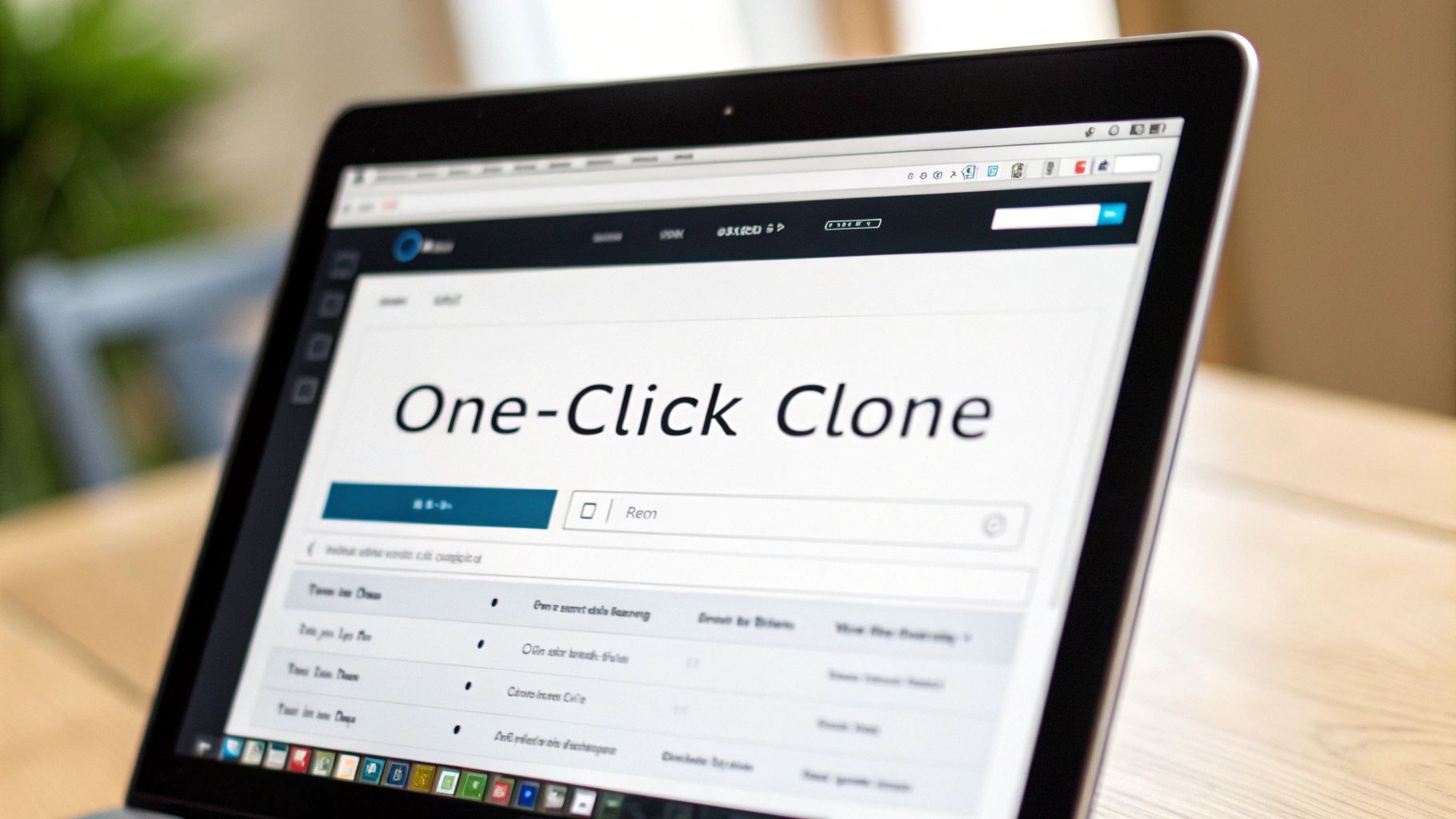
As you can see, the 'Clone' and 'New Draft' links are added right where you'd expect them to be. It feels like a natural part of WordPress, which is exactly what you want from a good tool.
The real magic for agencies, though, is tucked away in the plugin's settings. You can get really specific about what gets copied over. Just navigate to Settings > Duplicate Post to tweak permissions and choose precisely what to copy.
Agency Pro Tip: Take a minute to configure the plugin to copy custom fields (especially if you use Advanced Custom Fields), SEO data from plugins like Yoast or Rank Math, and the original page template. This is a game-changer because it ensures complex client layouts are duplicated with 100% accuracy, saving your developers from a lot of headaches.
Customising Your Duplication Settings
Inside the plugin's settings, you'll find a tab labelled "What to copy". Here, you can tick boxes for all the different page elements you want to include in the duplication, like the title, content, featured image, excerpt, and even comment status.
The "Permissions" tab is just as crucial for agency work. You can limit the duplication feature to certain user roles, like Administrators or Editors. This is a smart move to prevent clients or less experienced team members from accidentally cluttering up the site with duplicate pages, helping you keep the backend tidy and organised. That level of control is what makes a simple plugin an essential part of any professional WordPress toolkit.
Cloning Content Natively in the Block Editor
While a dedicated plugin is a great one-click fix, sometimes you just want to keep your WordPress install as lean as possible. Minimising plugins is a smart move to avoid potential conflicts and simplify maintenance down the road—something we’re always thinking about in white label WordPress development.
Thankfully, the native Block Editor (you might know it as Gutenberg) has some surprisingly powerful tools for duplicating page layouts without adding a single extra plugin to your site.
The most direct approach is a simple copy-and-paste. It sounds basic, but it's incredibly effective when all you need is the content and structure moved over, without the extra baggage like page template settings or custom fields.
The Copy All Blocks Workflow
This is the method I turn to most often for a quick clone. You can get it done in less than a minute, which is perfect for scaffolding a new page that needs to follow an existing design.
Here’s how it works:
- First, head to the page or post you want to copy and open it in the editor.
- In the top-right corner, click the three-dot menu icon to open up the editor options.
- Near the bottom of that menu, you'll see "Copy all blocks". Give that a click. WordPress just copied every single thing on that page—text, images, columns, you name it—to your clipboard.
- Now, just create a new page. In the blank editor, use your trusty keyboard shortcut (Ctrl+V or Cmd+V) to paste. The entire layout will instantly appear, ready for you to start tweaking.
This little trick preserves all your complex block groups and column structures far more reliably than trying to highlight and copy everything manually. For any agency focused on speed and efficiency, mastering this native function is a non-negotiable.
Creating a Library with Reusable Blocks
What if you have sections you use over and over again? Things like a call-to-action banner, a specific team bio layout, or a custom-styled pricing table. Copying and pasting every time can get old fast.
This is exactly what Reusable Blocks were made for.
Once you’ve designed a group of blocks you love, just select them, click the options menu for the block group, and hit "Create Reusable Block." Give it a name you'll remember, and from now on, you can drop that entire pre-made section into any page or post with a single click.
By building out a solid library of Reusable Blocks and Block Patterns, an agency is essentially creating its own internal, plugin-free page builder. It’s a powerful way to streamline content creation and a core skill for delivering high-quality white label WordPress designer projects efficiently.
Using Templates in Elementor and Other Page Builders
If your agency runs on a page builder like Elementor, Beaver Builder, or Divi, you already have a powerful duplication workflow at your fingertips. These tools are built around the idea of reusable designs, offering robust templating systems that go way beyond just cloning content. This is how you maintain tight brand consistency and seriously speed up your build times.
A simple copy-paste might get the text across, but it’s guaranteed to miss the dozens of tiny adjustments that make a design really work. Page builder templates, on the other hand, capture everything.
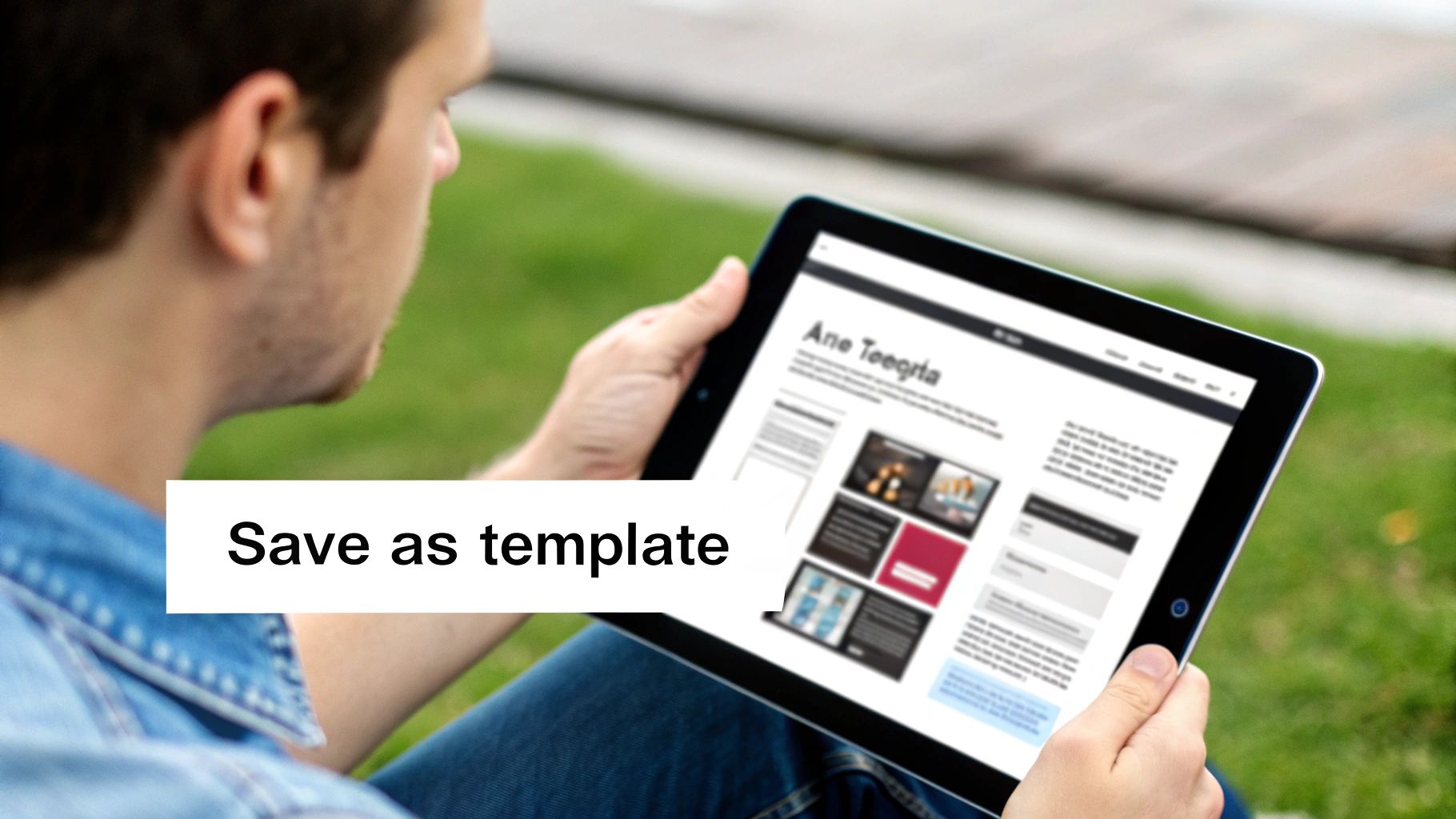
When you save a page as a template, you’re locking in:
- Complex Styling: Every custom colour, font choice, margin, and padding value is preserved.
- Widget Settings: All the specific configurations inside each widget—from image selections to form fields—are perfectly replicated.
- Responsive Adjustments: Your carefully crafted layouts for tablet and mobile are saved, meaning the new page will be fully responsive right out of the box.
For any WordPress web design company in Australia focused on delivering pixel-perfect, highly customised sites, this method is absolutely essential.
Saving Your Page as a Template
The process feels pretty similar no matter which builder you prefer. When you’re editing a page you want to reuse, look for an option to save the layout as a template.
In Elementor, it’s hidden in plain sight. Just click the little arrow next to the green "Update" button and select "Save as Template."
Be sure to give your template a memorable name. Something clear like "Standard Service Page" or "About Us – Corporate Layout" will save you headaches later. Once saved, it’s added to your template library, which quickly becomes a treasure trove of your agency's best designs.
To use it, you just create a new page, open your library, and insert the template. The entire design—structure, styling, and all—populates in a few seconds, ready for you to swap out the content.
This isn't just about saving time on one page. It’s about building a scalable design system. For white label WordPress agency partners, this level of efficiency is what makes your pricing competitive and your projects profitable.
Moving Templates Between Websites
Here's where it gets really powerful for agencies juggling multiple clients. Most page builders let you export your saved templates as a file (usually a .json file).
Let's say you've just nailed the perfect "Case Study" page for a client. You can export that template, then simply import it into another client's WordPress site. Boom—you have an amazing starting point without reinventing the wheel.
This is a core technique for WordPress developers for agencies in Australia. It streamlines the entire process, from spinning up a new site to rolling out a fresh landing page, ensuring every project benefits from your best work without having to start from a blank canvas every single time.
Cloning a page in WordPress is incredibly fast. You can have a new layout ready in seconds. But if you’re not careful, that quick win can turn into a long-term SEO headache for your client's site.
Think of it this way: duplicating a page is a great shortcut, but it comes with a big responsibility—making sure you don't get penalised by Google for duplicate content.
When search engines find the same (or very similar) content on different URLs, they get confused. They don't know which page is the original, which one to show in search results, or where to send all that valuable link equity. At best, you're splitting your ranking power. At worst, you're actively harming the site's visibility.
If Google sees too much duplicate content, it might just stop indexing those pages altogether. In really bad cases, especially if it looks like you're trying to game the system, it could even de-index the whole site. That's why every single page you clone needs to be updated immediately with its own unique titles, headings, content, and metadata. You can read more about tackling this on Computing Australia's guide to duplicate content.
What to Do Immediately After Cloning a Page
To get all the time-saving benefits of duplication without torpedoing your SEO, you need a solid game plan. The moment you create that clone, treat it as a brand-new page.
Here’s what I do every single time:
- Tackle the On-Page Basics: First thing's first, change the page title, meta description, and the main H1 heading. Make them unique and relevant to what this new page is actually for.
- Rewrite the Content: Don't just swap a few words around. You need to rewrite a good chunk of the body copy—I aim for at least 30-40% fresh content. The goal is to make this page genuinely valuable on its own.
- Fix the URL Slug: When WordPress duplicates a page, it usually adds a "-2" to the end of the URL (like
your-page-2). Change this straight away to something clean, descriptive, and keyword-friendly.
A duplicated page is just a starting template. The real work begins after you click 'clone'. Failing to differentiate the new page tells search engines you're creating low-value, repetitive content, which can damage site authority.
To help you stay on track, here's a quick checklist of the essential SEO tasks to perform right after you've duplicated a page. Following these steps helps prevent any accidental penalties from search engines.
Post-Duplication SEO Checklist
| SEO Task | Action Required | Why It Matters |
|---|---|---|
| Update Page Title | Write a completely new, unique title tag for the cloned page. | This is the most prominent on-page SEO element. Duplicates confuse search engines and dilute ranking signals. |
| Rewrite Meta Description | Craft a new meta description that accurately reflects the new page's content. | Avoids duplicate snippets in search results and improves click-through rates from users. |
| Change URL Slug | Edit the auto-generated slug (e.g., page-name-2) to a unique, keyword-rich URL. |
A clean, unique URL is a key ranking factor and prevents indexing confusion. |
| Revise H1 Heading | Ensure the main H1 heading is unique and distinct from the original page. | Signals the primary topic of the new page to both users and search engines. |
| Modify Body Content | Rewrite a significant portion (30% or more) of the text to offer unique value. | This is the most critical step to avoid being flagged for thin or duplicate content. |
| Update Internal Links | Check and update any internal links to point to relevant pages, not the original source page. | Ensures a logical site structure and proper distribution of link equity. |
| Replace Images/Media | If possible, use unique images and update alt text accordingly. | Adds more unique signals to the page and improves accessibility. |
Sticking to this checklist ensures that your efficient workflow doesn't accidentally create an SEO problem down the line.
How to Handle Duplicates You Don't Want Indexed
Of course, not every page you clone is meant for public consumption. Sometimes you're just creating a copy for internal testing, staging some design changes, or building a private landing page for a specific campaign.
For these pages, you need to be explicit and tell search engines to simply ignore them.
The easiest way to do this is with a "noindex" tag. You can usually set this in your favourite SEO plugin with a single click. This tag is a direct instruction to search crawlers telling them not to add the page to their index. It's an absolute must for any temporary, staging, or internal-only pages. For more on how different platforms handle these kinds of features, check out our deep dive into WordPress vs Squarespace for agency projects.
By being methodical, you can make sure your page duplication process works for you, not against your client's SEO goals.
Common Questions About Duplicating WordPress Pages
Once you start duplicating pages as part of your regular agency workflow, you'll quickly run into a few common questions. Moving beyond the basic "how-to" and into the finer points is what really refines your process. Here are some of the most frequent queries we see from agencies just like yours.
Think of it like this: duplicating is just the starting line. What you do next—making sure the new page is unique before it goes live—is what protects your client's SEO and keeps everything running smoothly.
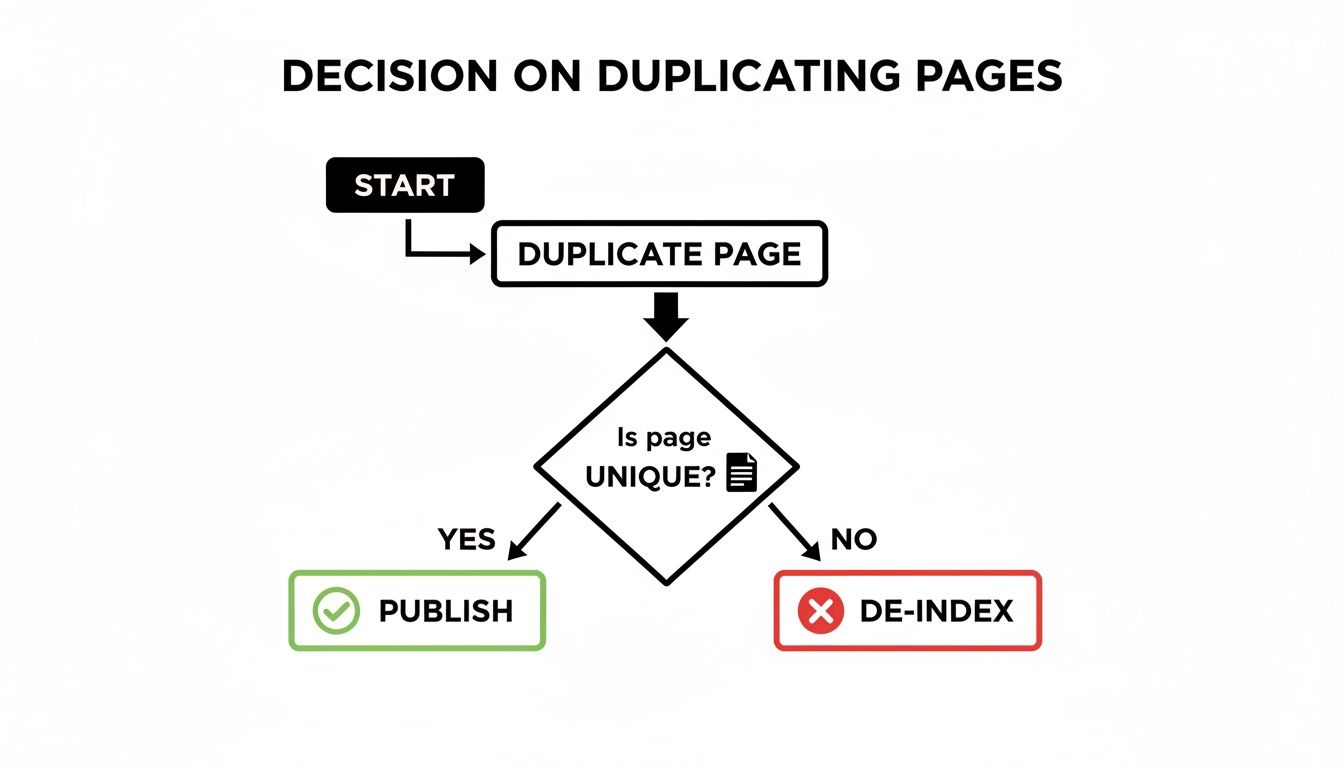
The key takeaway here is simple. Duplication is a tool, not a final step. The actions you take afterward determine whether it’s a helpful shortcut or a potential problem.
Does Duplicating a Page Copy Everything?
This is a big one, and the answer is: it depends on the method.
A dedicated plugin like Yoast Duplicate Post is built to be incredibly thorough. It’s designed to copy pretty much everything—the content, featured images, page template settings, custom fields from plugins like ACF, and even all the SEO metadata. The best part is that most of these plugins give you settings to pick and choose exactly what gets carried over.
The native Block Editor method, on the other hand, is much more basic. When you use the "Copy all blocks" function, you're only grabbing the content and its visual layout. All the important metadata, like custom fields, specific page settings, and comments, gets left behind.
Can I Duplicate a Page to Another Website?
While you can’t do this with a single click, moving layouts and pages between different WordPress sites is standard practice for agencies. There are a few solid ways to handle this.
- For Page Builders: Tools like Elementor make this a breeze. You can save an entire page as a template, export it as a JSON file, and then simply import that file on the new site. It works beautifully.
- Native WordPress Tools: The built-in Tools > Export/Import feature is surprisingly handy. It lets you move specific pages or posts between sites and is a reliable choice for anything built with the Block Editor.
- Migration Plugins: If you need to move a whole chunk of a site or clone it entirely, a dedicated migration plugin is definitely the right tool for the job.
The right method really boils down to what you’re trying to move. For polished design layouts, exporting a page builder template is your best bet. For transferring entire content structures, the native WordPress tools get the job done.
Is a Plugin Better Than Copy and Paste?
It all comes down to what you're trying to achieve.
A plugin is your fastest and most reliable option for creating a perfect, one-off clone that includes every single setting and piece of metadata. It’s practically foolproof and a massive time-saver.
However, if you just need the content layout and want to keep the client's site lean and clean, the Block Editor's "Copy all blocks" function is often all you need. For agencies building a reusable design system for the long haul, creating custom Block Patterns is the smarter strategy. Keeping an eye on your ongoing WordPress website maintenance cost can help you decide when a plugin's efficiency is worth the extra weight.
What Happens to the URL Slug?
This is a critical point that’s so easy to overlook.
To prevent two pages from having the exact same URL, WordPress automatically adds a suffix to the new page's permalink, like "-2". So, your new page might end up with a URL like yoursite.com/services-2.
It is absolutely essential that you edit this new permalink before you even think about publishing the page. Leaving the default slug is messy, bad for user experience, and confusing for search engines. Always change it to something unique, descriptive, and keyword-friendly that actually reflects the new page's content.